
Windows · Troubleshooting
How to view a USB device tree on Windows
A USB device tree shows the path from a host controller, through hubs, to connected devices. It helps you work out which accessories share a connection.
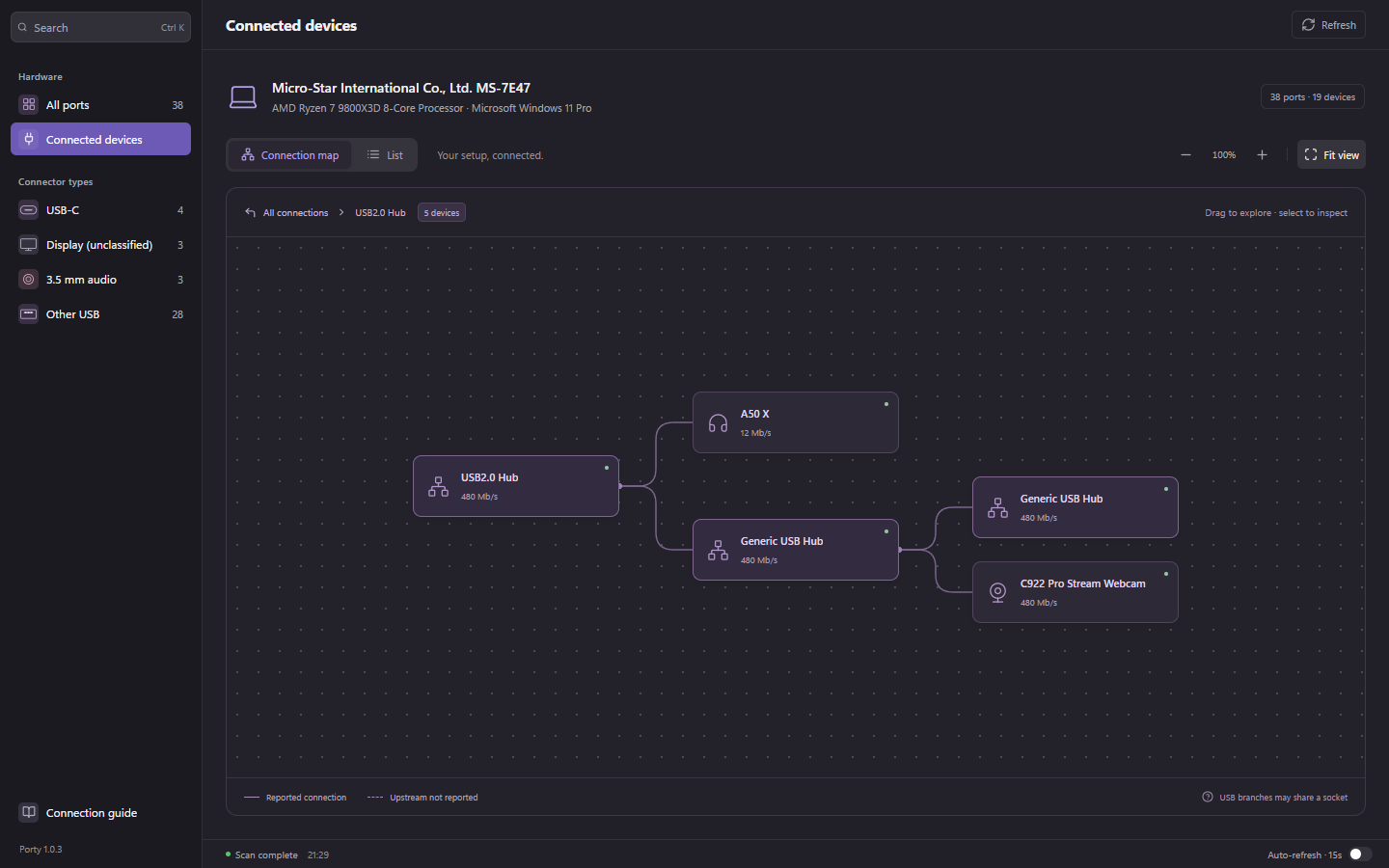
Explore the tree in Porty
Start with a device you can identify, such as your webcam. A dock can contain several hubs and built-in devices, so one physical box may occupy multiple nodes in the tree. The map is most useful when you follow one known accessory at a time.
- Connect the accessories you want to inspect, open Porty, and refresh the scan.
- Open the connection map. Search for the device name, or select its node in the map.
- Follow the branch toward the computer to identify the parent hub. Open a hub branch to focus on its downstream devices.
- Select the device or hub to inspect the reported current link, connection path, and available details.
Use Microsoft USBView for another view
Microsoft provides USBView with the Windows SDK’s Debugging Tools for Windows. Its left pane displays the USB connection tree; its right pane shows information about the selected device. Follow Microsoft’s installation instructions linked below.
Microsoft notes that USBView may not display newer USB information. Device Manager is also useful for status and problem codes: open the device’s Properties and check the Details tab. A controller name alone does not establish an attached device’s active speed.
- Launch USBView and expand the relevant controller and hub entries in the left pane.
- Select your device, then inspect its configuration and descriptors in the right pane.
- Compare the device’s position with the branch shown in Porty. Different tools may group or label the same hardware differently.
Read the tree without counting every node as a socket
- A host controller manages a USB bus; it is not necessarily a single external connector.
- A hub creates downstream branches. Several of its devices may share the upstream connection.
- An internal webcam, Bluetooth device, or dock component may appear alongside external accessories.
- USB 2 and USB 3 companion branches can represent the same physical hub or socket. Do not add their counts together to infer chassis ports.
- An unreported parent or route means the available scan did not establish that relationship. It does not mean the device is disconnected.
Identify an ambiguous branch
If several devices have the same generic name, note the current tree, disconnect one nonessential accessory, and refresh. Reconnect it and refresh again to see which branch changed. Eject storage before unplugging it, and avoid disconnecting the keyboard or mouse you need to control the computer.
Porty uses read-only hardware queries. Managed Windows policies can restrict the helper or hide information. When that happens, keep the missing fields unreported and use the device’s documentation to fill in the context.